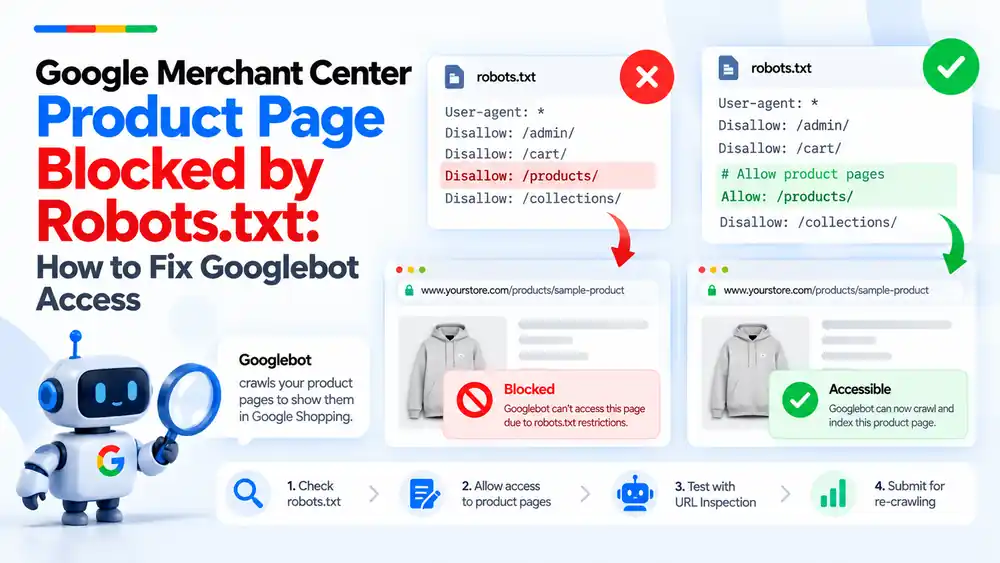
If Merchant Center says a product page is blocked by robots.txt, Google’s crawlers are not allowed to visit that URL, so the product cannot be checked or shown. Open yoursite.com/robots.txt, remove or narrow any Disallow rule that covers product pages or product images, make sure Googlebot and Storebot-Google are not blocked, test the URL with URL Inspection in Search Console, then let Merchant Center recrawl the products.
Last updated: 6 October 2026 · By Ashraful Islam, founder of GMC Fixer
A product page blocked by robots.txt is one of the easiest Merchant Center problems to cause and one of the easiest to fix. In 5+ years of fixing Merchant Center accounts, we often see it after a theme change, a new SEO plugin or a developer adding rules to hide pages. One line in robots.txt can stop Google from seeing every product in your store. This guide explains what the error means and how to give Google access again.
What “blocked by robots.txt” means
Robots.txt is a small text file at the root of your website, for example yourstore.com/robots.txt. It tells crawlers which parts of the site they may visit. Google’s crawlers follow these rules. If a rule disallows your product URLs, Google cannot load the landing page, check the price and availability, or confirm the product is real.
In Merchant Center this usually appears as a landing page or image that is not crawlable because of robots.txt, and the affected products are disapproved or limited until Google can reach them.
Which Google crawlers need access
| Crawler | What it does | Needs access to |
|---|---|---|
| Googlebot | Google’s main crawler | Product pages |
| Storebot-Google | Crawler for Google Shopping surfaces | Product pages and checkout flow |
| Googlebot-Image | Crawls images | Product images |
| AdsBot-Google | Checks ad landing pages; ignores rules for all user agents (*) and only follows rules that name it | Product landing pages used in ads |
Common robots.txt mistakes that block products
This example blocks every product page:
User-agent: *
Disallow: /admin/
Disallow: /cart/
Disallow: /products/
Disallow: /collections/- Blocking the product folder, such as /products/ on Shopify or /product/ on WooCommerce.
- Blocking image folders, such as /wp-content/uploads/ or a CDN path, so product images cannot be crawled.
- Wildcard rules such as Disallow: /*? that also catch product URLs with parameters, including variant URLs.
- A staging robots.txt left live, often a full Disallow: / copied from a development site.
- Rules for specific bots, for example a group for Googlebot or AdsBot-Google that disallows the whole site.
How to fix Googlebot access step by step
- Check robots.txt. Open yourstore.com/robots.txt and look for Disallow rules that match product pages, product images or the paths used in your feed links.
- Allow access to product pages. Remove the rule that blocks them, or make it narrower so it only covers private areas such as the cart, checkout and account pages.
- Check images too. Make sure the folders that serve product images are not disallowed.
- Test with URL Inspection. In Google Search Console, inspect a product URL and confirm crawling is allowed. The robots.txt report in Search Console also shows the version Google last fetched.
- Ask Google to recrawl. Re-fetch your feed or request a recrawl in Merchant Center, and allow time for products to update.
A safer version of the same file keeps private pages blocked and lets Google see products:
User-agent: *
Disallow: /admin/
Disallow: /cart/
Disallow: /checkout/

Sitemap: https://yourstore.com/sitemap.xml
If you must keep a broad Disallow rule, add a more specific Allow rule for the product path. Google follows the most specific matching rule, so always test the exact URL afterwards.
Platform notes
Shopify
Shopify’s default robots.txt does not block product pages. Problems usually come from edits to the robots.txt.liquid template or from apps. Review that template and remove any rule covering /products/. See our Shopify Merchant Center guide.
WordPress and WooCommerce
Check your SEO plugin’s robots.txt editor and any physical robots.txt file in the site root. Make sure /product/ and /wp-content/uploads/ are not blocked, and that “Discourage search engines” is turned off in Settings. See our WooCommerce Merchant Center guide.
Quick checklist
- Robots.txt loads at yourstore.com/robots.txt with a 200 response
- No Disallow rule matches product pages
- No Disallow rule matches product image folders
- No separate group blocks Googlebot, Storebot-Google or AdsBot-Google
- Feed links point to live, crawlable product URLs
- URL Inspection shows crawling allowed for a sample product
What not to do
- Do not delete robots.txt without checking what it protects. Keep private areas such as cart, checkout and account pages blocked.
- Do not use robots.txt to hide pages that are linked in your product feed.
- Do not use a noindex tag as a fix for crawling. Google has to be able to crawl a page to see that tag.
- Do not request a Merchant Center review before the fix is live and tested.
Blocked vs accessible
| Check | Blocked | Accessible |
|---|---|---|
| Robots.txt rule | Disallow: /products/ | No rule covering product pages |
| URL Inspection | Blocked by robots.txt | Crawl allowed |
| Merchant Center | Products disapproved or not crawlable | Products can be reviewed and shown |
| Images | Image folder disallowed | Images crawlable |
Related problems: landing page not working and product feed errors.
How GMC Fixer approaches crawl problems
We check robots.txt, server responses, redirects, image hosting and feed links together, because a crawl block is often only one part of the problem. We fix access, confirm it with Search Console, and make sure the store is ready before any review is requested. Learn more about our Google Merchant Center suspension fix service.
FAQ
What does ‘blocked by robots.txt’ mean in Google Merchant Center?
It means a rule in your robots.txt file stops Google’s crawlers from visiting the product page or image. Google cannot check the landing page, so the product can be disapproved or shown as not crawlable.
Which Google crawlers need access to my product pages?
Googlebot and Storebot-Google (Google’s Shopping crawler) need access to product pages, and Googlebot-Image needs access to product images. If you run Shopping or Performance Max ads, AdsBot-Google also checks landing pages, and it only follows rules that name it directly.
Will adding ‘Allow: /products/’ fix the problem?
Only if nothing more specific blocks the URL. Google follows the most specific matching rule, so a longer Disallow rule can still win. Remove the rule that blocks product pages, then test the exact product URL in Search Console.
How do I edit robots.txt on Shopify or WordPress?
On Shopify, robots.txt is controlled by the robots.txt.liquid theme template; remove custom rules or apps that add product blocks. On WordPress, check your SEO plugin’s robots.txt editor or a physical robots.txt file in the site root.
How long does it take for Merchant Center to update after fixing robots.txt?
Google caches robots.txt, usually for up to a day, and then recrawls products on its own schedule. Re-fetching your feed and requesting a recrawl can speed things up, but allow a few days for all products to update.
Related guides
- Google Merchant Center Landing Page Not Working
- Product Feed Errors and Google Shopping Suspensions
- Google Merchant Center Shopify Suspension
- Google Merchant Center WooCommerce Suspension
- Google Merchant Center Automatic Updates: Should You Enable Them?
Get a free review of your account
If your products are blocked and you are not sure which rule is causing it, send us your store details and we will review your account for free. Contact us here. We reply within 24 hours.
Leave a Reply