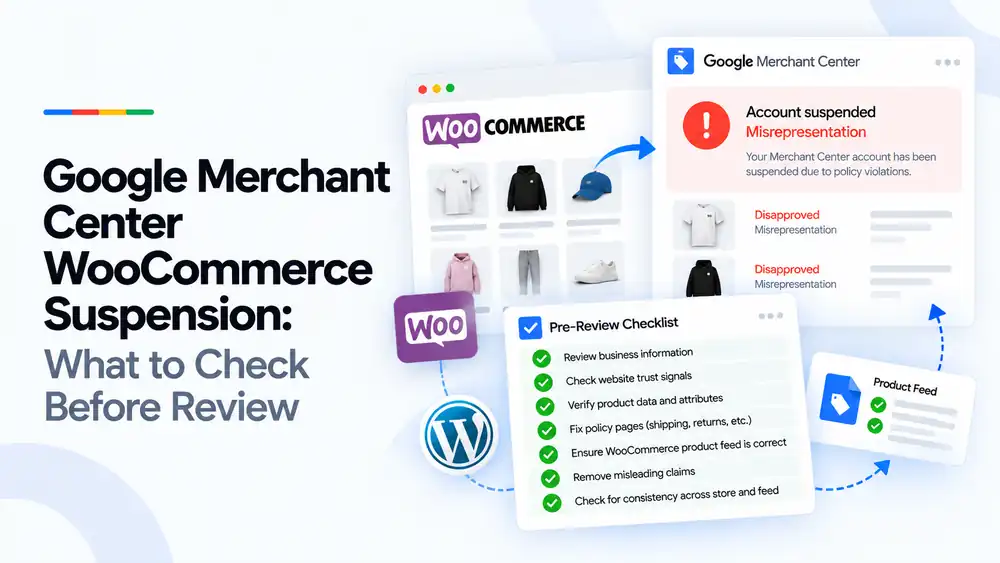
Before requesting a review for a suspended WooCommerce store, check seven things: business information, website trust signals, product data and attributes, policy pages, the WooCommerce product feed, misleading claims, and consistency between the store and the feed. Most WooCommerce suspensions come from leftover WordPress demo content, missing policies, plugin conflicts and feed plugins sending prices or availability that do not match the live site. Fix all of these first, then request one review.
Last updated: 1 October 2026 · By Ashraful Islam, founder of GMC Fixer
WooCommerce gives store owners full control, but that flexibility also means more things can go wrong. Themes, page builders, caching, currency switchers and feed plugins all affect what Google sees. When a WooCommerce store is suspended in Google Merchant Center, the fix is rarely one setting. This guide covers what to check before you request a review, based on 5+ years of Merchant Center recovery work.
What a WooCommerce suspension means
A suspension stops all of your products from showing on Google. The reason is shown in Merchant Center under the account issues section, not inside WordPress. For WooCommerce stores the most common reasons are misrepresentation, website needs improvement, and repeated product data mismatches.
What Google checks on a WooCommerce store
| Area | What Google looks for |
|---|---|
| Business information | A clear business name, address and contact details that match Merchant Center |
| Trust signals | A secure site, real About and Contact pages, and no leftover demo content |
| Product pages | Accurate prices, availability, images and descriptions |
| Policy pages | Real shipping, returns, privacy and terms pages linked from every page |
| Product feed | Feed values that match the live product pages |
| Checkout | A working checkout with clear costs and no surprise fees |
Common WooCommerce-specific causes
| Cause | Why it is a problem |
|---|---|
| Demo content left on the site, such as Sample Page or lorem ipsum text | Makes the store look unfinished or untrustworthy |
| Default or empty policy pages | Google cannot find clear terms for shipping and returns |
| Feed plugin mapping the wrong fields | Prices, sale prices or availability do not match the store |
| Caching plugins serving old pages | Google sees an outdated price or stock status |
| Currency switcher or geolocation plugins | Google sees a different currency or price than the feed |
| Tax settings that change the displayed price | Prices with or without tax do not match the feed |
| Plugins adding fake reviews, timers or sales popups | Misleading urgency and social proof count as misrepresentation |
| Maintenance mode or login walls | Google cannot access the pages it needs to review |
What to check before review, step by step
- Review business information. Make sure your business name, address, phone and email are the same on the website and in Merchant Center.
- Check website trust signals. Remove demo content, broken links and placeholder pages, and confirm the site uses HTTPS.
- Verify product data and attributes. Check titles, prices, sale prices, stock status, brand, GTIN and variant attributes in WooCommerce.
- Fix policy pages. Write real shipping, returns, privacy and terms pages and link them in the footer.
- Ensure the WooCommerce product feed is correct. Check the feed plugin field mapping, update schedule, shipping and tax settings.
- Remove misleading claims. Turn off fake review, countdown and sales notification plugins, and remove unsupported claims.
- Check consistency across store and feed. Compare a sample of products in the feed with the live pages, logged out and in a private window.
- Request a review. Only once everything is fixed and the feed has been reprocessed.
A quick WooCommerce settings checklist
- Store address set under WooCommerce general settings
- Shipping zones and rates match the shipping sent to Google
- Tax settings show prices the same way the feed sends them
- Feed plugin maps price, sale price, availability, brand and GTIN
- Caching excludes cart, checkout and account pages
- Currency switchers do not change prices for Google
- No demo pages, posts or products left published
- Policy pages linked in the footer on every page
If the issue is specific prices, see our guide to price mismatch errors.
What not to do
- Do not request a review the same day without changing anything.
- Do not open a new Merchant Center account to get around the suspension.
- Do not switch feed plugins without checking the field mapping first.
- Do not hide problems with temporary changes and undo them after approval.
- Do not copy policy pages from another store or a template without editing them.
WooCommerce vs. Shopify suspensions
| WooCommerce | Shopify | |
|---|---|---|
| Usual product data source | A feed plugin or Google’s WooCommerce extension | The Google and YouTube app |
| Common technical causes | Caching, plugin conflicts, tax and currency settings | Markets setup, app settings, synced draft products |
| Common website causes | Demo content, empty policy pages | Template policy pages, review and timer apps |
| Who controls the fix | You or your developer, across WordPress and plugins | Mostly Shopify settings and apps |
If you also run a Shopify store, read our Shopify suspension checklist.
How GMC Fixer approaches WooCommerce suspensions
We review your WordPress site, WooCommerce settings, plugins and feed setup against Google’s policies, fix what is causing the suspension, and prepare the account for review. This is the core of our Google Merchant Center suspension fix service, and WooCommerce stores are a large part of our work.
Frequently asked questions
Why was my WooCommerce store suspended in Google Merchant Center?
The most common reasons are misrepresentation, website quality issues and product data that does not match the store. On WooCommerce this is often caused by leftover demo content, missing policy pages, unclear business details and feed plugins sending incorrect prices or availability.
Which feed plugin should I use for WooCommerce?
Google’s own WooCommerce extension and several third-party feed plugins all work. What matters more is how the plugin is set up: it must map the correct price, sale price, availability, brand, GTIN and shipping fields, and it must update often enough to match the store.
Can caching plugins cause Merchant Center problems?
Yes. Caching can show Google an old version of a product page with an outdated price or stock status, which causes mismatch errors. Clear the cache after price changes and make sure product and cart pages are cached correctly.
How long should I wait before requesting a review?
Request a review only once every issue is fixed and the feed has updated. Each failed review can add a longer waiting period, so it is better to take an extra day to check everything than to request a review too early.
Should I switch from WooCommerce to Shopify to fix a suspension?
No. The suspension is tied to your Merchant Center account and your website content, not the platform. Moving platforms does not fix the underlying issues and can make them harder to track down.
Related guides
- Google Merchant Center Shopify suspension: complete fix checklist
- Google Merchant Center misrepresentation suspension: how to fix it
- Google Merchant Center price mismatch: causes and fixes
- Google Merchant Center suspension checklist
- Google Merchant Center dropshipping suspension: compliance guide for 2026
- Can you create a new Google Merchant Center account after suspension?
- Google Merchant Center landing page not working: how to fix URL and crawl issues
- Google Merchant Center Free Shipping Claims
- Google Merchant Center Review Failed
- Common Problems Found in 100 Suspended Merchant Center Stores
- 10 Patterns We Keep Seeing in Failed Merchant Center Reviews
- What We Learned From Reviewing Suspended Dropshipping Stores
- Google Merchant Center Review Failed: Why It Happens
- Google Merchant Center Review Button Disabled: What the Cooldown Period Means
- Google Merchant Center Product Page Blocked by Robots.txt: How to Fix Googlebot Access
- Google Merchant Center Automatic Updates: Should You Enable Them?
Get a free review of your account
If your WooCommerce store has been suspended in Google Merchant Center, send us your store URL and a screenshot of the issue. We will tell you what is causing it and how to fix it, and we reply within 24 hours.
Leave a Reply