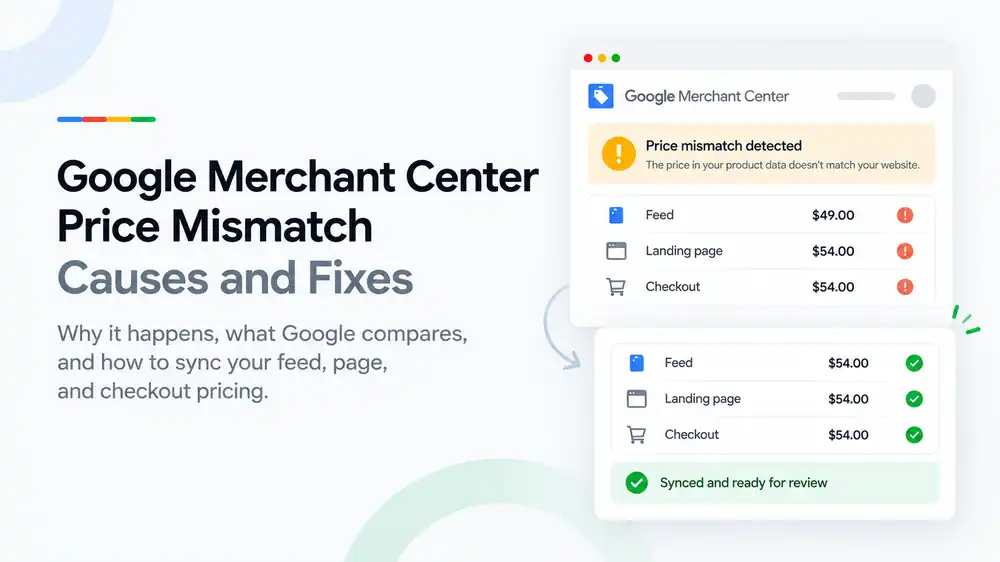
A Google Merchant Center price mismatch means the price in your product data does not match the price Google sees on your landing page or at checkout. The usual causes are a feed that updates too slowly, sale prices without dates, variant pricing, tax or currency settings, and caching. Fix it by making the feed, the product page, structured data and checkout show the same price, then let Google recrawl or request a review.
Last updated: 1 October 2026 · By Ashraful Islam, founder of GMC Fixer
Price mismatch is one of the most common product issues in Google Merchant Center. A product that costs $49 in your feed but $54 on the page will be disapproved, and if it happens across many products or keeps coming back, it can put the whole account at risk. The good news is that price mismatches are almost always technical, so they can be traced and fixed. This guide explains why they happen, what Google compares, and how to keep your feed, page and checkout prices in sync, based on 5+ years of Merchant Center work.
What a price mismatch means
Google checks the price you submit in your product data against the price it finds when it crawls your landing page and, in some cases, your checkout. If they differ, Merchant Center flags the product, often as “Mismatched value (page crawl) [price]” or a similar price mismatch issue, and stops showing it.
A single disapproved product is a product-level problem. But when mismatches are widespread or repeat over time, Google can treat it as inaccurate pricing across the account, which can lead to a warning and then a suspension, usually under the misrepresentation policy.
What Google compares
| Source | What Google reads | What must match |
|---|---|---|
| Product feed | The price and sale_price attributes you submit | The exact amount and currency shoppers will pay for that item |
| Landing page | The price shown on the product page and in its structured data | The same price for the same variant the feed points to |
| Checkout | The price in the cart and at checkout before payment | The same item price, with no unexpected extra charges |
| Structured data | The offers.price in your Product schema | The price visible on the page and in the feed |
Common causes of price mismatch
| Cause | What happens | How to fix it |
|---|---|---|
| Slow feed updates | You change a price on the site but the feed still sends the old price | Fetch the feed more often or use an app or API that syncs prices automatically |
| Sale prices | A sale ends or starts on the site but the feed is not updated | Use sale_price with sale_price_effective_date so the feed matches the sale period |
| Variants | The feed sends one variant’s price but the link opens a different default variant | Give each variant its own ID and a link that preselects it, such as a ?variant= URL |
| Tax and currency | The site shows prices with or without tax, or in another currency, differently from the feed | Follow your target country’s tax rules and show the feed currency on the landing page |
| Caching | Google crawls a cached page with an old price | Clear the cache after price changes and avoid caching price elements too long |
| Apps and scripts | Discount, bundle or currency apps change the price after the page loads | Make sure the price Google sees matches the price the shopper pays, or remove the conflict |
| Structured data | The schema price differs from the visible price | Generate the schema from the same price source as the page |
How to fix a price mismatch, step by step
- Open the issue in Merchant Center. Note which products are affected and the price Google found versus the price you submitted.
- Check one product by hand. Open its link in a private window and compare the feed price, the page price, the structured data price and the checkout price.
- Find the pattern. Decide whether the cause is timing, sales, variants, tax, currency, caching or an app.
- Fix the source, not just the symptom. Correct the setting, app or feed rule so every product pulls the price from the same place.
- Sync the feed. Update the feed or trigger a fetch so Google receives the correct prices.
- Clear caches. Clear your site and CDN cache so Google sees the current page.
- Check structured data. Confirm the Product schema shows the same price and currency as the page.
- Let Google recrawl or request a review. Most product errors clear after the next crawl. If your account received a warning, request a review only when everything matches.
A quick sync checklist
- Feed price matches the landing page price for every product and variant
- Landing page price matches the checkout price before payment
- Sale prices use start and end dates in the feed
- Each variant has its own ID and a link that opens that variant
- Currency and tax display follow your target country’s rules
- Structured data price matches the visible price
- Caches cleared after price changes
- Feed set to update at least daily, or synced in real time
For the wider list of feed problems that can trigger disapprovals and suspensions, read our guide to Google Shopping product feed errors.
What not to do
- Do not fix only the products listed in Merchant Center. The same cause usually affects others.
- Do not raise the price at checkout or add hidden fees. That makes the problem worse.
- Do not rely only on automatic item updates. They are a safety net, not a fix.
- Do not request reviews repeatedly before the feed and site match.
- Do not change prices in Merchant Center manually and forget to update the site.
Price mismatch vs. a misrepresentation suspension
| Price mismatch | Misrepresentation suspension | |
|---|---|---|
| Level | Usually product-level disapprovals | Account-level suspension |
| Cause | Technical differences between feed, page and checkout | Overall trust and transparency problems |
| Risk | Can escalate if widespread or repeated | All products stop showing |
| Fix | Sync prices and let Google recrawl | Full audit of business, site and feed, then a review |
If your account has already been suspended, see what to expect from Google Merchant Center reinstatement.
How GMC Fixer approaches price mismatch issues
We trace the price for affected products through your feed, product pages, structured data, apps, cache and checkout to find the real source of the mismatch. We then fix the setup so prices stay in sync, not just the products Google listed. This is part of our Google Merchant Center suspension fix service, and it works whether you are dealing with a few disapprovals or an account-level warning.
Frequently asked questions
What does price mismatch mean in Google Merchant Center?
It means the price you submitted in your product data is different from the price Google found on your product’s landing page or at checkout. Google disapproves the affected products because shoppers would see one price in the ad and another on your site.
Can a price mismatch get my Merchant Center account suspended?
A few mismatches usually lead to product disapprovals. If mismatches are widespread or keep coming back, Google can issue an account-level warning and later suspend the account, because inaccurate prices can mislead shoppers.
How long does it take for price mismatch errors to clear?
Once the feed, landing page and checkout show the same price, the errors usually clear after Google recrawls the products, which often takes from a day to a few days. Updating the feed and requesting a review where Merchant Center offers it can speed this up.
Should I turn on automatic item updates?
Automatic item updates let Google adjust prices and availability in your listings based on what it finds on your site. They can reduce disapprovals, but they are a safety net, not a fix. You still need to keep your feed accurate.
Why does Google see a different price than I do?
Google may see a different variant, currency, country, tax setting or cached version of the page than you see while logged in. Check the page in a private window, from the target country if possible, and check the price in your structured data.
Related guides
- Google Shopping product feed errors
- Google Merchant Center website needs improvement: how to fix it
- Misrepresentation policy violations: a practical guide
- Google Merchant Center suspension checklist
- Google Merchant Center availability mismatch: how to fix it
- Google Merchant Center shipping mismatch: why it happens and how to fix it
- Google Merchant Center missing GTIN: when you need it and how to fix it
- Google Merchant Center invalid GTIN: causes, examples and fixes
- Google Merchant Center missing brand attribute: how to fix product disapprovals
- Google Merchant Center missing color, gender and age group: complete apparel fix guide
- Google Merchant Center Shopify suspension: complete fix checklist
- Google Merchant Center WooCommerce suspension: what to check before review
- Google Merchant Center dropshipping suspension: compliance guide for 2026
- Can you create a new Google Merchant Center account after suspension?
- Google Merchant Center landing page not working: how to fix URL and crawl issues
- Google Merchant Center Free Shipping Claims
- Google Merchant Center Review Failed
- Common Problems Found in 100 Suspended Merchant Center Stores
- 10 Patterns We Keep Seeing in Failed Merchant Center Reviews
- What We Learned From Reviewing Suspended Dropshipping Stores
- Google Merchant Center Review Failed: Why It Happens
- Google Merchant Center Review Button Disabled: What the Cooldown Period Means
- Google Merchant Center Product Page Blocked by Robots.txt: How to Fix Googlebot Access
- Google Merchant Center Automatic Updates: Should You Enable Them?
Get a free review of your account
If Merchant Center is flagging price mismatches on your products, send us your store URL and a screenshot of the issue. We will tell you what is causing it and what fixing it involves, and we reply within 24 hours.
Leave a Reply