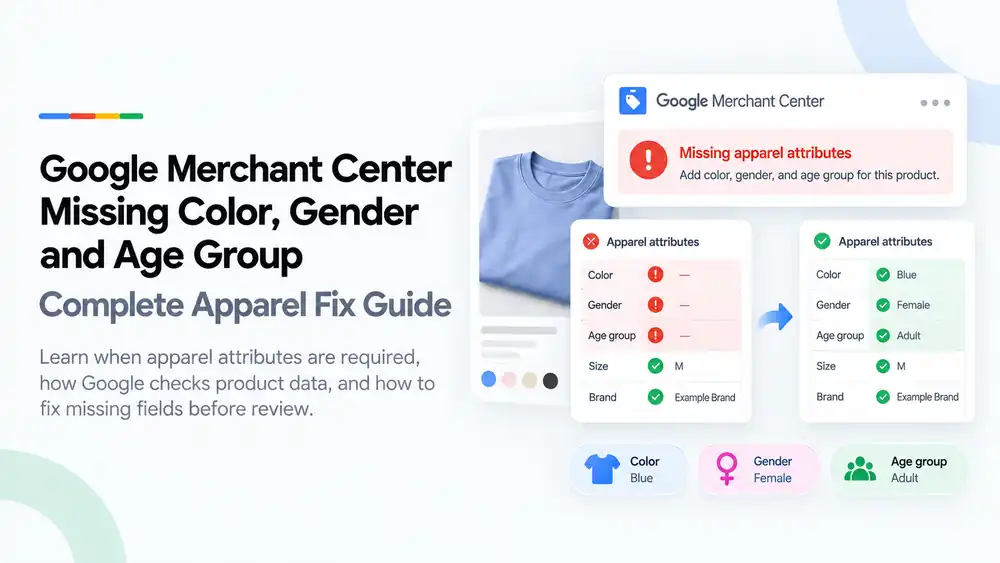
Google Merchant Center flags missing color, gender and age group when apparel products are submitted without these attributes. They are required for clothing and accessories shown in several countries, including the US and UK, and clothing and shoes also need a size. Fix it by adding color, gender and age_group to every apparel product and variant in your feed, using Google’s accepted values, and make sure they match what the product page shows.
Last updated: 1 October 2026 · By Ashraful Islam, founder of GMC Fixer
Clothing stores see more product data errors in Google Merchant Center than almost any other category, and missing color, gender and age group are among the most common. The product looks complete on the website, but the feed does not send these attributes, so Google cannot tell who the item is for or which variant it is. This guide explains when apparel attributes are required, which values Google accepts, and how to fix missing fields before review, based on 5+ years of Merchant Center work.
What the missing apparel attributes error means
Google groups clothing, shoes, jewellery, bags and similar items as apparel and accessories. For these products, Google uses color, gender and age_group to show the right variant to the right shopper and to power the filters on Google Shopping. When one or more of these values is missing, Merchant Center shows an issue such as “Missing value [color]”, “Missing value [gender]” or “Missing value [age_group]”, and the product is disapproved or limited.
When Google requires these attributes
| Attribute | Required for | Accepted values |
|---|---|---|
| color | Apparel and accessories in countries such as the US, UK, Germany, France, Japan and Brazil | The color name, or up to 3 colors separated by / |
| gender | Apparel and accessories in the same countries | male, female, unisex |
| age_group | Apparel and accessories in the same countries | newborn, infant, toddler, kids, adult |
| size | Clothing and shoes in the same countries | The size shown on the product, such as M, 10 or 32×34 |
| item_group_id | All products that have variants | A shared ID for all variants of one product |
Even where these attributes are not strictly required, adding them helps Google match your products to the right searches and filters.
How Google checks apparel data
- Feed values: each attribute must use an accepted value and format.
- Product page: the color, size and target shopper should match what the landing page shows.
- Variants: each variant needs its own color and size, and all variants need the same item_group_id.
- Images: the image for each variant should show that variant’s color.
Common causes of missing color, gender and age group
| Cause | What happens |
|---|---|
| Feed app does not map gender and age group | Google receives empty values for every product |
| Color stored only in the title or description | The color attribute is empty |
| Variant options named differently, such as Colour or Shade | The feed does not recognise them as color |
| Invalid values like Men, Ladies, Baby or Teen | Google treats them as missing or invalid |
| Products imported from suppliers without attributes | Whole collections are flagged at once |
| Supplemental feed or rules overwriting values | Correct values are replaced with empty ones |
How to fix missing apparel attributes, step by step
- Open the issue in Merchant Center. Note which attributes are missing and how many products are affected.
- Check your feed mapping. Confirm which store fields your feed app sends as
color,gender,age_groupandsize. - Add gender and age group. Set them in your feed app or with product metafields, using only male, female or unisex, and newborn, infant, toddler, kids or adult.
- Set color and size per variant. Use clear variant option names such as Color and Size so the feed picks them up.
- Fix invalid values. Replace numbers, hex codes, abbreviations and phrases like see image with real color names.
- Check item_group_id. Make sure all variants of one product share the same ID.
- Match the product page. Show the same color, size and target shopper on the landing page.
- Update the feed. Let Google reprocess the products, or request a review where Merchant Center offers one.
A quick apparel attributes checklist
- Every apparel product has color, gender and age_group
- Clothing and shoes also have size
- Gender uses male, female or unisex only
- Age group uses newborn, infant, toddler, kids or adult only
- Multi-color items list up to 3 colors separated by /
- Each variant has its own color and size
- All variants share one item_group_id
- Variant images show the correct color
What not to do
- Do not set every product to unisex or adult just to clear the error if that is not accurate.
- Do not use made-up color names that shoppers will not recognise without also using a standard color.
- Do not put several colors into one word, such as BlackWhite.
- Do not fix values only in Merchant Center while your store still sends empty values.
- Do not submit variants as one product with a list of colors and sizes.
Missing apparel attributes vs. missing GTIN
| Missing color, gender, age group | Missing GTIN | |
|---|---|---|
| What is missing | Product details about the variant and shopper | The product’s barcode number |
| Who it affects | Apparel and accessories | Branded products with a manufacturer barcode |
| Usual impact | Disapproval or limited visibility | Limited performance or disapproval |
| Fix | Add the attributes in your feed | Add the real GTIN or set identifier_exists correctly |
If your apparel products also show identifier issues, read our guides to missing GTIN and missing brand attribute problems.
How GMC Fixer approaches apparel attribute issues
We review your store’s variant setup, feed mapping and product pages, then fix the source of the missing values so new products are submitted correctly. This is part of our Google Merchant Center suspension fix service, and it works for both product disapprovals and wider account problems.
Frequently asked questions
Why does Google Merchant Center say my product is missing color, gender and age group?
Google requires these attributes for apparel and accessories products in several countries. If your feed does not send them, or sends them in the wrong format, the products are disapproved or limited until you add them.
What values can I use for gender and age group?
For gender, use male, female or unisex. For age group, use newborn, infant, toddler, kids or adult. Other values, such as men, ladies, baby or teen, are not accepted.
How should I write the color attribute?
Use the color name a shopper would recognise, such as Navy or Black. For products with more than one color, list up to three colors separated by a slash, for example Black/White/Red. Do not use numbers, hex codes or phrases like see image.
Do variants need their own color and size?
Yes. Each variant is a separate product in Merchant Center, so each one needs its own color and size value, along with a shared item_group_id that links the variants together.
Why does Shopify not send color, gender and age group?
Shopify’s Google and YouTube app reads color and size from variant options, but gender and age group usually need to be set in the app or with product metafields. If they are missing there, Google receives empty values.
Related guides
- Google Merchant Center missing brand attribute: how to fix product disapprovals
- Google Merchant Center missing GTIN: when you need it and how to fix it
- Google Shopping product feed errors
- Google Merchant Center suspension checklist
- Google Merchant Center Shopify suspension: complete fix checklist
- Google Merchant Center WooCommerce suspension: what to check before review
- Google Merchant Center dropshipping suspension: compliance guide for 2026
- Can you create a new Google Merchant Center account after suspension?
- Google Merchant Center landing page not working: how to fix URL and crawl issues
- Google Merchant Center Free Shipping Claims
- Google Merchant Center Review Failed
- Common Problems Found in 100 Suspended Merchant Center Stores
- 10 Patterns We Keep Seeing in Failed Merchant Center Reviews
- What We Learned From Reviewing Suspended Dropshipping Stores
- Google Merchant Center Review Failed: Why It Happens
- Google Merchant Center Review Button Disabled: What the Cooldown Period Means
- Google Merchant Center Product Page Blocked by Robots.txt: How to Fix Googlebot Access
- Google Merchant Center Automatic Updates: Should You Enable Them?
Get a free review of your account
If Merchant Center is disapproving your clothing products for missing attributes, send us your store URL and a screenshot of the issue. We will tell you what is causing it and how to fix it, and we reply within 24 hours.
Leave a Reply