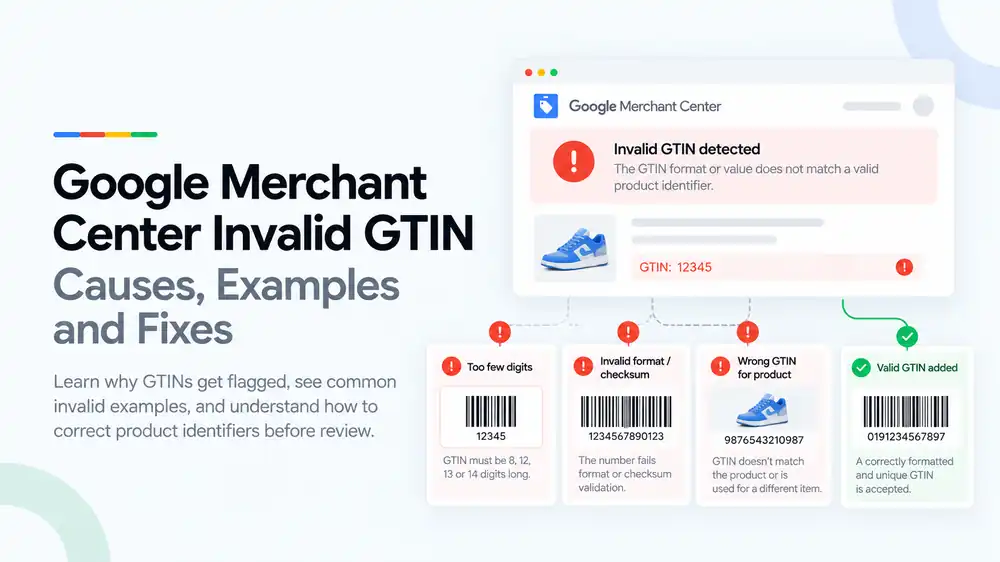
An invalid GTIN in Google Merchant Center means the barcode number you submitted is not a real, correctly formatted product identifier. The usual causes are the wrong number of digits, a failed check digit, leading zeros lost in a spreadsheet, numbers from restricted ranges, or a GTIN that belongs to a different product or brand. Fix it by replacing each one with the real GTIN from the manufacturer or packaging, or by marking products that have no GTIN with identifier_exists set to “no”.
Last updated: 1 October 2026 · By Ashraful Islam, founder of GMC Fixer
An invalid GTIN error is different from a missing GTIN warning. With a missing GTIN, Google simply did not receive a number. With an invalid GTIN, Google received a number and rejected it, which usually means the product is disapproved. The good news is that invalid GTINs follow a few clear patterns, so once you know what to look for they are quick to find and fix. This guide explains why GTINs get flagged, shows common invalid examples and explains how to correct product identifiers, based on 5+ years of Merchant Center work.
What an invalid GTIN error means
Google checks every GTIN for the right length, a valid check digit, an allowed number range, and whether it matches the brand and product it is attached to. If any check fails, Merchant Center shows an invalid or incorrect GTIN issue for that product. If your products simply have no GTIN, read our guide to missing GTIN issues instead.
Common invalid GTIN examples
| Problem | Example | Why Google rejects it |
|---|---|---|
| Too few digits | 12345 | A GTIN must have 8, 12, 13 or 14 digits |
| Leading zero lost | An 11-digit number where the real UPC starts with 0 | Spreadsheets often remove the first zero, leaving the wrong length |
| Scientific notation | 4.00638E+12 | Excel turned the number into a formula-style value |
| Wrong check digit | A 13-digit number with the last digit mistyped | The final digit no longer matches the calculated check digit |
| Spaces or symbols | 4006-3813-3393-1 | GTINs must contain digits only |
| Restricted range | Numbers starting with 2, 02 or 04 | These ranges are for in-store or internal use, not retail products online |
| Wrong product or brand | A real GTIN copied from another item | The number is valid but belongs to a different product or brand |
How the check digit works
The last digit of a GTIN is calculated from the others, so a single typo makes the whole number invalid. Take the 13-digit EAN 4006381333931. Ignore the last digit, then, starting from the right, multiply the digits alternately by 3 and 1 and add them up. For this number the total is 89. The check digit is the amount needed to reach the next multiple of 10, which is 1, matching the final digit. If any digit were changed, the total would change and the check would fail.
You do not need to do this by hand. GS1 offers a free check digit calculator, and most feed tools validate GTINs automatically.
Common causes of invalid GTINs
- Exporting products to CSV or Excel, which drops leading zeros or converts long numbers to scientific notation
- Typing GTINs by hand from packaging
- Using the SKU, product code or MPN in the GTIN field
- Copying a supplier or marketplace listing that uses the wrong barcode
- Giving several variants the same GTIN, or the parent product’s GTIN
- Buying cheap barcodes that are registered to another company
- Inventing numbers to clear missing GTIN warnings
How to fix an invalid GTIN, step by step
- Export the affected products from Merchant Center. Note the exact issue for each one: invalid, incorrect or restricted GTIN.
- Check the length. Make sure each GTIN has 8, 12, 13 or 14 digits and contains digits only.
- Restore lost zeros. Format the column as text in your spreadsheet and add back any leading zeros.
- Validate the check digit. Use the GS1 check digit calculator or your feed tool to find numbers that fail.
- Replace wrong GTINs with real ones. Get the correct number from the packaging, supplier or brand for each product and variant.
- Remove numbers that are not GTINs. Move SKUs and MPNs into their own fields.
- Mark products that have no GTIN. Leave the gtin field empty and set
identifier_existsto no. - Update the feed. Let Google reprocess the products, or request a review if Merchant Center offers one.
A quick GTIN validation checklist
- Every GTIN has 8, 12, 13 or 14 digits
- No spaces, dashes, letters or scientific notation
- Leading zeros are kept
- Every GTIN passes the check digit
- No numbers from restricted ranges such as 2, 02 or 04
- Each GTIN belongs to the exact product, brand and variant it is attached to
- Products without a GTIN use
identifier_existsset to no
What not to do
- Do not invent GTINs or use random number generators.
- Do not copy GTINs from other listings or marketplaces.
- Do not use another brand’s barcode on your own or compatible products.
- Do not put SKUs or internal codes in the GTIN field.
- Do not edit feeds in Excel without formatting the GTIN column as text.
Invalid GTIN vs. missing GTIN
| Invalid GTIN | Missing GTIN | |
|---|---|---|
| What happened | Google received a number and rejected it | Google did not receive a number |
| Usual impact | Product disapproval | Warning or limited performance |
| Main cause | Wrong format, check digit, range or product | The real GTIN was not submitted |
| Fix | Replace with the correct GTIN or remove it | Add the real GTIN or mark the product as having none |
GTINs that belong to other brands can also make products look counterfeit. If that applies to you, read our guide to counterfeit products suspensions.
How GMC Fixer approaches invalid GTIN issues
We audit every GTIN in your feed for length, check digit, range and brand match, find where numbers are being corrupted, and fix the feed setup so new products are submitted correctly. This is part of our Google Merchant Center suspension fix service, and it works for both product disapprovals and wider account problems.
Frequently asked questions
What does invalid GTIN mean in Google Merchant Center?
It means Google checked the GTIN you submitted and found that it is not a valid product identifier. The number may have the wrong length, fail the check digit, come from a restricted range, or belong to a different product or brand. Affected products are usually disapproved until the GTIN is fixed.
How many digits should a GTIN have?
A GTIN has 8, 12, 13 or 14 digits. UPC codes have 12 digits, EAN codes usually have 13, short EAN-8 codes have 8, and ITF-14 codes for cases have 14. Anything else, such as 5 or 11 digits, is invalid.
What is a GTIN check digit?
The last digit of every GTIN is a check digit calculated from the other digits. If one digit is wrong or two digits are swapped, the check digit no longer matches and Google rejects the number. This catches most typing and copy errors.
Why does my GTIN work in my store but fail in Merchant Center?
Your store may accept any number in its barcode field, but Google validates the format, check digit and range. Spreadsheets also often remove leading zeros or turn long numbers into scientific notation, which changes the GTIN before it reaches Google.
What should I do if my product does not have a GTIN?
Leave the gtin field empty, set identifier_exists to no, and add the brand and MPN where you have them. Do not make up a number or use a barcode from another product.
Related guides
- Google Merchant Center missing GTIN: when you need it and how to fix it
- Google Shopping product feed errors
- Google Merchant Center counterfeit products suspension: what to do
- Google Merchant Center suspension checklist
- Google Merchant Center missing brand attribute: how to fix product disapprovals
- Google Merchant Center missing color, gender and age group: complete apparel fix guide
- Google Merchant Center Shopify suspension: complete fix checklist
- Google Merchant Center WooCommerce suspension: what to check before review
- Google Merchant Center dropshipping suspension: compliance guide for 2026
- Can you create a new Google Merchant Center account after suspension?
- Google Merchant Center landing page not working: how to fix URL and crawl issues
- Google Merchant Center Free Shipping Claims
- Google Merchant Center Review Failed
- Common Problems Found in 100 Suspended Merchant Center Stores
- 10 Patterns We Keep Seeing in Failed Merchant Center Reviews
- What We Learned From Reviewing Suspended Dropshipping Stores
- Google Merchant Center Review Failed: Why It Happens
- Google Merchant Center Review Button Disabled: What the Cooldown Period Means
- Google Merchant Center Product Page Blocked by Robots.txt: How to Fix Googlebot Access
- Google Merchant Center Automatic Updates: Should You Enable Them?
Get a free review of your account
If Merchant Center is flagging invalid GTINs on your products, send us your store URL and a screenshot of the issue. We will tell you what is causing it and how to fix it, and we reply within 24 hours.
Leave a Reply