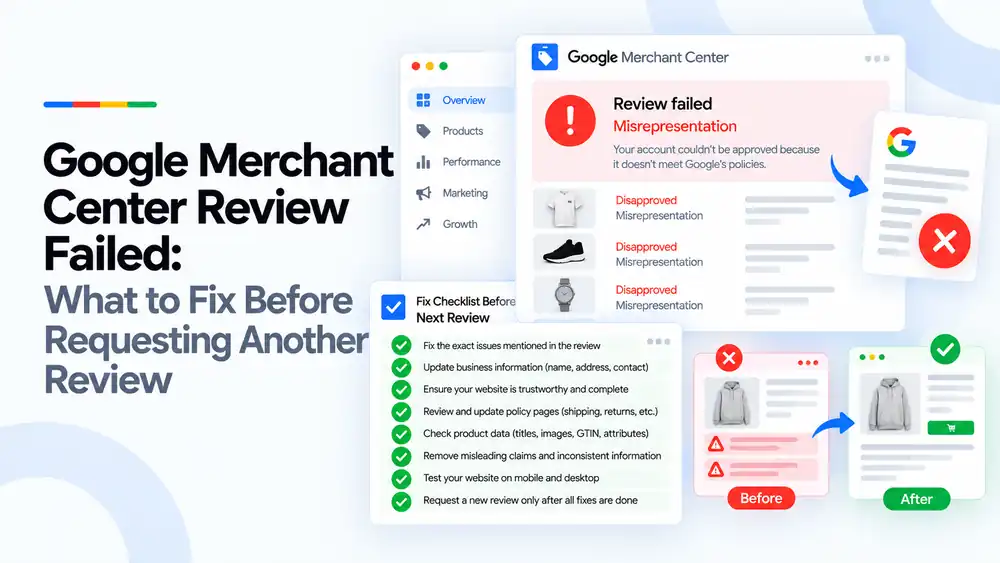
A failed review means Google checked your account again and still found the same problem, or a new one. Before you ask again, fix the exact issue named in Merchant Center, check your business details, policies, product data and claims across the whole site, and test it on mobile and desktop. Repeated failed reviews can lead to longer waiting periods, so only request another review when everything is done.
Last updated: 3 October 2026 · By Ashraful Islam, founder of GMC Fixer
Seeing “Review failed” after you thought you had fixed everything is frustrating. In 5+ years of working on Merchant Center accounts, the pattern we see most is simple: the store owner fixed one thing, but Google was looking at several. This guide shows you what to check before you press the review button again.
What “review failed” means
When you request a review, Google checks your account, website and products again against the policy it flagged. If it still finds a problem, the review fails and the account stays suspended or the products stay disapproved. The notice usually names the policy, such as Misrepresentation, but not the exact page or detail that caused it.
A failed review is not the end of the account. It is a signal that something is still missing, and that the next request should only go in once the whole site has been checked.
What Google checks on a new review
| Area | What Google looks at |
|---|---|
| The flagged policy | Whether the exact issue named in the notice has been fixed everywhere |
| Business information | Name, address, phone and email that match across the site and Merchant Center |
| Website trust | Complete pages, working checkout, clear About and Contact pages |
| Policy pages | Shipping, returns, refund, privacy and terms that are clear and consistent |
| Product data | Titles, images, prices, GTINs and attributes that match the landing pages |
| Claims | Badges, discounts, “free shipping” and guarantees that are accurate |
Common reasons a review fails
| Reason | Example |
|---|---|
| Only part of the issue fixed | Contact details added to the footer but still missing from the Contact page |
| Inconsistent business details | Different address on the site, the policy pages and Merchant Center |
| Leftover misleading claims | An old “70% off” banner or fake countdown timer still live |
| Thin or copied policy pages | Template returns policy that does not match how the store works |
| Feed and site not matching | Prices or availability in the feed differ from the product pages |
| Requesting too quickly | Review requested the same day, before changes were fully live or cached |
What to fix before requesting another review
- Fix the exact issues mentioned in the review. Start with the policy named in the notice and the items listed in Needs attention. Read the policy page Google links to.
- Update your business information. Use the same business name, address, phone and email on the website, policy pages and in Merchant Center business info.
- Make sure your website is trustworthy and complete. Remove placeholder text, broken pages and empty categories. Check About, Contact and checkout work properly.
- Review and update your policy pages. Shipping, returns, refund, privacy and terms should describe how your store actually works, in plain language.
- Check your product data. Titles, images, prices, GTINs and attributes in the feed should match each landing page.
- Remove misleading claims and inconsistent information. Look at banners, pop-ups, badges, reviews and discount labels across the whole site.
- Test your website on mobile and desktop. Google reviews both. Check pages load, prices show and checkout works on a phone.
- Request a new review only after all fixes are done. Give changes time to go live and clear any cache before you submit.
Quick checklist
- Exact issue from the notice fixed everywhere
- Business details identical on site and in Merchant Center
- No placeholder, broken or empty pages
- Policy pages clear and consistent
- Feed data matches landing pages
- No misleading claims, timers or badges
- Site tested on mobile and desktop
- Changes live and cache cleared before requesting
For the full pre-review audit, use our Google Merchant Center suspension checklist.
What not to do
- Don’t request another review straight after a failed one without changing anything.
- Don’t fix only the page you think caused it. Google reviews the whole site.
- Don’t open a new Merchant Center account to get around the suspension.
- Don’t add fake reviews, trust badges or business details to look more trustworthy.
Review failed vs. review still in progress
| Review failed | Review in progress | |
|---|---|---|
| What you see | Notice that the review was not successful | Status shows the account is under review |
| What it means | Google still found a policy issue | Google has not finished checking yet |
| What to do | Audit and fix, then request again when allowed | Wait and avoid big site changes until it finishes |
To understand timelines and what happens after a successful review, read Google Merchant Center reinstatement: what to expect. If the notice says misrepresentation, start with our misrepresentation guide.
How GMC Fixer approaches failed reviews
We start by finding out why the last review failed, not just what the notice says. We audit the site, policies, business details and feed against the flagged policy, fix the gaps and only then prepare the next review request. Learn more about our Google Merchant Center suspension fix service.
FAQ
How long do I have to wait after a failed review?
It depends on the issue. Merchant Center usually shows when you can request the next review. After repeated failed reviews the waiting period can get longer, so it is worth taking the time to fix everything before you try again.
Why did my review fail when I already fixed the issue?
Usually because the fix was incomplete. Google checks the whole site, not just the page you changed. Old pages, conflicting policies, product data in the feed or claims in banners and pop-ups can still trigger the same issue.
Should I appeal or request a review?
In Merchant Center they lead to the same thing: a new review of your account. What matters is that the account has actually changed. Requesting again without changes rarely gets a different result.
Will Google tell me exactly what to fix?
Not always. Notices name the policy, such as misrepresentation, but rarely the exact page or detail. You need to audit the site against the policy yourself or get help from someone who does this often.
Can I open a new account instead of requesting another review?
Opening a new account to get around a suspension breaks Google’s circumventing systems policy and can lead to all linked accounts being suspended. Fixing the original account is the safer route.
Related guides
- Misrepresentation Policy Violations Guide
- Google Merchant Center Reinstatement: What to Expect
- Google Merchant Center Website Needs Improvement
- Google Merchant Center Suspension Checklist
- Common Problems Found in 100 Suspended Merchant Center Stores
- 10 Patterns We Keep Seeing in Failed Merchant Center Reviews
- What We Learned From Reviewing Suspended Dropshipping Stores
- Google Merchant Center Review Failed: Why It Happens
- Google Merchant Center Review Button Disabled: What the Cooldown Period Means
- Google Merchant Center Product Page Blocked by Robots.txt: How to Fix Googlebot Access
- Google Merchant Center Automatic Updates: Should You Enable Them?
Get a free review of your account
Had a review fail and not sure why? Send us your store details and we’ll tell you what to fix before your next request. We reply within 24 hours.
Leave a Reply