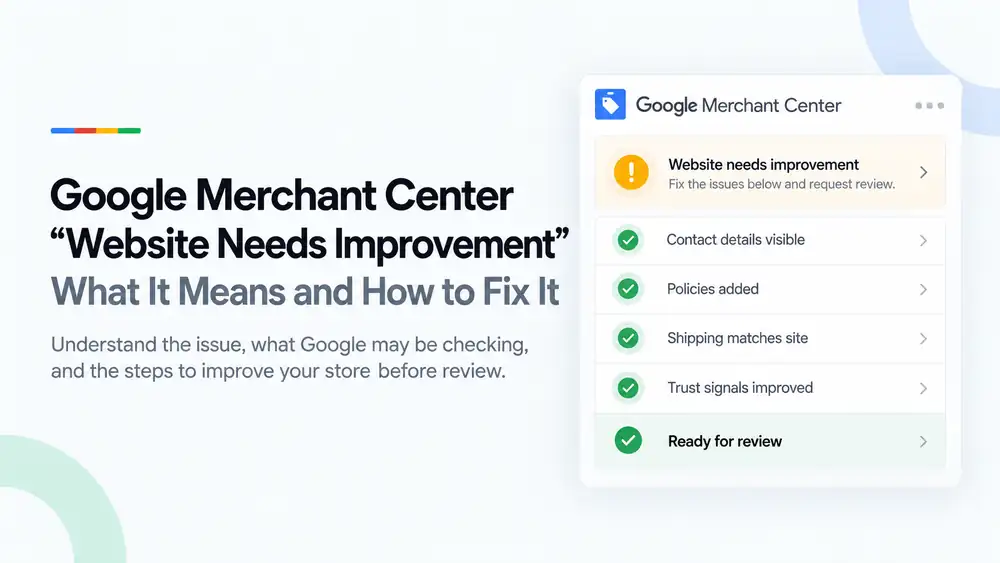
A “website needs improvement” notice in Google Merchant Center means Google reviewed your online store and found it is not yet complete or trustworthy enough for shoppers. The usual gaps are missing contact details, missing or vague policies, shipping and return terms that do not match your Merchant Center settings, and weak trust signals. Fix all of them across the whole site, then request a review before the notice turns into a suspension.
Last updated: 1 October 2026 · By Ashraful Islam, founder of GMC Fixer
“Website needs improvement” is one of the most common notices new and growing stores see in Google Merchant Center. It is frustrating because Google rarely says exactly what is wrong. In most cases, though, the problem is not a single broken page. It is the overall impression the store gives a shopper. This guide explains what Google is likely checking, how to fix each gap, and how to prepare the store before you request a review, based on 5+ years of helping merchants with Merchant Center issues.
What the “website needs improvement” notice means
Google wants every store that shows ads or free listings to be safe, transparent and easy to buy from. When its reviewers or automated systems find that your website falls short, Merchant Center shows an account issue saying your website needs improvement. It is about the website as a whole, so fixing one product or one page rarely clears it.
The notice is often a warning first. If the website is not improved, Google can limit your products or suspend the account, most often under the misrepresentation policy. Treat it as an early chance to fix things while the account is still in better shape.
What Google may be checking on your website
| Area | What Google may notice | How to fix it |
|---|---|---|
| Contact details | No email, phone number or address, or contact details hidden in one small corner | Add a Contact page and show your email, phone or WhatsApp and business address in the footer of every page |
| Store policies | Missing, copied or vague refund, return, shipping, privacy or terms pages | Write clear policies in your own words with real timeframes, costs and steps, and link them in the footer |
| Shipping information | Delivery times or costs on the site that do not match Merchant Center shipping settings | Make the shipping page, product pages, checkout and Merchant Center show the same costs and delivery times |
| Trust signals | No About page, no business name, placeholder text, broken links or fake-looking reviews | Add a real About page, use one business name everywhere, remove demo content and show only genuine reviews |
| Checkout | Checkout errors, missing payment options or unexpected fees at the last step | Test a full order on desktop and mobile and show all costs before the final step |
| Product pages | Thin descriptions, missing prices or availability, or prices that differ from the feed | Complete every product page and keep price and stock in sync with your product feed |
Why stores get this notice
Most stores that see this notice are legitimate. They simply launched before the site looked finished from a shopper’s point of view. The patterns we see most often are:
- New stores built from a theme that still contains placeholder text, demo products or empty pages
- Policy pages generated by a template that mention the wrong business name or country
- Shipping times promised on the site that are much shorter than the real delivery time
- Contact details limited to a form with no email, phone number or address
- Dropshipping stores with supplier descriptions, unrealistic delivery promises and no clear returns process
- Sites where the business name differs between the website, the footer, the policies and Merchant Center
How to fix “website needs improvement”, step by step
- Read the notice carefully. Note the exact issue name, any linked policy and any deadline shown in Merchant Center.
- Audit the store like a first-time shopper. Open the site on a phone, click through the home page, a product, the cart, checkout, the footer and every policy page.
- Make contact details visible. Show an email address, a phone or WhatsApp number and your business address on the Contact page and in the footer.
- Rewrite your policies. Refund, return, shipping, privacy and terms pages should name your business and give real timeframes, costs and steps.
- Match shipping everywhere. Shipping costs and delivery times must be the same on the site, at checkout and in your Merchant Center shipping settings.
- Improve trust signals. Add a genuine About page, remove demo content and broken links, and show only real reviews.
- Test checkout. Place a test order and confirm all costs are shown before payment and that every payment option works.
- Check business details in Merchant Center. Your business name, address and website should match what shoppers see on the site.
- Request a review once, when everything is ready. A rushed review that fails can lead to longer waiting periods.
A quick pre-review checklist
Before you click “Request review”, confirm each of these is true:
- Contact details are visible on every page
- Refund, return, shipping, privacy and terms policies are published and linked in the footer
- Shipping costs and delivery times match the site, checkout and Merchant Center
- Trust signals are improved: real About page, one business name, no placeholder content
- Checkout works and shows all costs before payment
- The store is ready for review on both desktop and mobile
For a full list covering account, feed and website checks, use our Google Merchant Center suspension checklist.
What not to do
- Do not request a review after fixing only one item. Google looks at the whole site.
- Do not copy policies from another store. Copied text often names the wrong business or terms.
- Do not add fake reviews, trust badges or awards you have not earned. They make things worse.
- Do not open a new Merchant Center account to get around the notice. This can be treated as circumventing Google’s systems.
- Do not promise delivery times you cannot meet just to look competitive.
How it differs from a misrepresentation suspension
| Website needs improvement | Misrepresentation suspension | |
|---|---|---|
| Stage | Often an early warning about the website | An enforcement action on the account |
| Focus | Website completeness and shopper experience | Honesty and transparency across the business, site and product data |
| Products | May still show for a while, depending on the notice | Usually stop showing until the suspension is lifted |
| Fix | Improve the website, then request a review | Full audit of business, site and feed, then request a review |
The two are closely linked. A website that is not improved in time is one of the most common routes into a misrepresentation suspension, which is why it pays to fix it properly the first time. If your account has already been suspended, read what to expect from Google Merchant Center reinstatement.
How GMC Fixer approaches this issue
We review the whole store against what Google checks: contact details, policies, shipping, trust signals, checkout and product pages, plus your Merchant Center settings. We then list every change needed, help you make them, and prepare the review request so it goes in only when the site is ready. This is part of our Google Merchant Center suspension fix service, and the same process works whether you see a warning or a full suspension.
Frequently asked questions
What does “website needs improvement” mean in Google Merchant Center?
It means Google checked your online store and found that it does not yet meet its standards for a complete, trustworthy shopping experience. It is a warning about the website itself, not about one product, and it usually points to missing information, unclear policies or data that does not match your Merchant Center settings.
Is “website needs improvement” the same as a suspension?
Not always. It is often shown as a warning first, sometimes with a date by which the issue must be fixed. If the website is not improved, it can lead to limited visibility or an account suspension, usually under the misrepresentation policy.
How do I fix the “website needs improvement” issue?
Make your contact details easy to find, publish clear shipping, return, refund, privacy and terms pages, make sure shipping costs and delivery times match Merchant Center, remove anything unfinished or misleading, and test checkout. When the whole site is ready, request a review in Merchant Center.
How long does Google take to review the website after I fix it?
Reviews often take a few days to about a week, sometimes longer. Request a review only once everything is fixed, because repeated failed reviews can lead to longer waiting periods before you can ask again.
Can a new Shopify or WooCommerce store get this notice?
Yes. New stores get it often because themes ship with placeholder text, empty policy pages and demo content. Replace every placeholder with real business information before you connect the store to Merchant Center.
Related guides
- Google Merchant Center suspension checklist
- Misrepresentation policy violations: a practical guide
- Why Google Merchant Center suspends accounts
- Google Merchant Center reinstatement: what to expect
- Google Merchant Center price mismatch: causes and fixes
- Google Merchant Center availability mismatch: how to fix it
- Google Merchant Center shipping mismatch: why it happens and how to fix it
- Google Merchant Center missing GTIN: when you need it and how to fix it
- Google Merchant Center invalid GTIN: causes, examples and fixes
- Google Merchant Center missing brand attribute: how to fix product disapprovals
- Google Merchant Center missing color, gender and age group: complete apparel fix guide
- Google Merchant Center Shopify suspension: complete fix checklist
- Google Merchant Center WooCommerce suspension: what to check before review
- Google Merchant Center dropshipping suspension: compliance guide for 2026
- Can you create a new Google Merchant Center account after suspension?
- Google Merchant Center landing page not working: how to fix URL and crawl issues
- Google Merchant Center Free Shipping Claims
- Google Merchant Center Review Failed
- Common Problems Found in 100 Suspended Merchant Center Stores
- 10 Patterns We Keep Seeing in Failed Merchant Center Reviews
- What We Learned From Reviewing Suspended Dropshipping Stores
- Google Merchant Center Review Failed: Why It Happens
- Google Merchant Center Review Button Disabled: What the Cooldown Period Means
- Google Merchant Center Product Page Blocked by Robots.txt: How to Fix Googlebot Access
- Google Merchant Center Automatic Updates: Should You Enable Them?
Get a free review of your website
If Merchant Center says your website needs improvement, send us your store URL and a screenshot of the notice. We will tell you what is likely triggering it and what fixing it involves, and we reply within 24 hours.
Leave a Reply